Google Drive is widely used for storing and sharing videos, but sometimes users face a frustrating issue where a video simply does not play. Instead of loading normally, the video may freeze, buffer endlessly, or show a blank screen.
This problem can happen for several reasons, and it is not always related to the file itself. In many cases, it is linked to browser behavior, internet connection, file format, or Google Drive’s processing system.
This guide explains the most common reasons why Google Drive videos do not play and how the system handles video playback.
How Google Drive Video Playback Works
Before understanding the problem, it is important to know how video playback works on Google Drive.
When you open a video in Google Drive:
- The file is streamed from Google’s servers
- The video is processed for preview playback
- The browser loads it in real time
- Data is buffered as you watch
Unlike downloaded videos, Google Drive does not fully load the file at once. It streams the video based on your internet speed and device performance.
This is why playback depends on multiple factors working together.
Reason 1: Slow or Unstable Internet Connection
One of the most common reasons for video not playing is a weak internet connection.
Since Google Drive streams videos online, it requires a stable connection.
If the internet is slow:
- The video may take too long to load
- Playback may pause frequently
- The screen may stay stuck on loading
Even short interruptions in the connection can stop the video from playing smoothly.
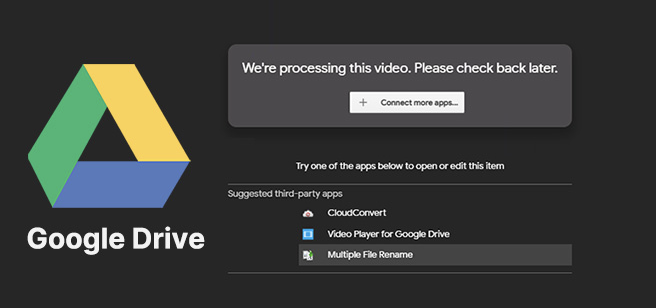
Reason 2: Video Still Processing
When a video is uploaded to Google Drive, it does not become available instantly in full playback quality.
Google Drive needs time to:
- Process the video file
- Generate preview versions
- Optimize it for streaming
During this processing stage, the video may not play properly or may show errors.
This is especially common with:
- Large video files
- High-resolution videos (1080p or 4K)
- Recently uploaded content
Once processing is complete, playback usually works normally.
Reason 3: Unsupported Video Format
Google Drive supports many common video formats, but not all formats are optimized for playback.
Supported formats generally include:
- MP4
- MOV
- AVI (limited support in some cases)
If the video format is not fully compatible, the player may fail to load it properly.
In such cases, the video might:
- Not start at all
- Show a black screen
- Load indefinitely without playing
Format compatibility plays a major role in playback success.
Reason 4: Browser Issues or Cache Problems
Sometimes the problem is not the video but the browser itself.
Browsers store temporary files called cache, which help websites load faster. However, if this data becomes outdated or corrupted, it can affect video playback.
Common browser-related issues include:
- Old cached data interfering with loading
- Disabled JavaScript or media settings
- Outdated browser version
- Extension conflicts blocking playback
Since Google Drive relies heavily on browser performance, any issue here can affect video playback.
Reason 5: Device Performance Limitations
Video playback also depends on the performance of your device.
If the device is slow or overloaded:
- Video may lag or freeze
- Audio may play without video
- Playback may stop unexpectedly
This often happens when:
- Too many apps are running in the background
- Device memory is low
- Hardware is outdated
Google Drive streaming requires a stable environment to function properly.
Reason 6: File Corruption or Upload Issues
Sometimes the issue comes from the video file itself.
If a video was:
- Not uploaded completely
- Interrupted during upload
- Corrupted before uploading
Then Google Drive may not be able to play it correctly.
In such cases, the video may appear in Drive but fail during playback or show errors.
Reason 7: Temporary Google Drive Server Issues
Although rare, Google Drive itself can experience temporary technical issues.
When this happens:
- Videos may load slowly
- Playback may fail temporarily
- Some features may not respond properly
These issues are usually short-term and resolve automatically once the system stabilizes.
Why Google Drive Uses Streaming Instead of Full Download
Google Drive uses streaming to make video playback faster and more efficient.
Instead of downloading the full file first:
- Only parts of the video are loaded at a time
- Playback starts faster
- Data usage is optimized
However, this also means that playback depends heavily on internet stability.
Difference Between Playback Issue and Download Issue
It is important to understand that video not playing is different from download problems.
Playback Issue
- The video does not play in the browser
- Related to streaming or processing
- Depends on the internet or format
Download Issue
- The file cannot be saved locally
- Related to permissions or limits
- Affects file transfer, not streaming
Both issues have different causes and solutions.
How Google Drive Handles Video Processing
When a video is uploaded, Google Drive automatically processes it for preview.
This includes:
- Converting the video into a streamable format
- Generating thumbnails
- Adjusting playback quality options
Until this process is complete, the video may not play properly.
Why Some Videos Play but Others Don’t
In Google Drive, not all videos behave the same way because:
- Some are optimized formats (like MP4)
- Some are large or high-resolution files
- Some are newly uploaded and still processing
This is why one video may play instantly while another struggles to load.
Final Thoughts
Google Drive video playback issues usually come down to a few key factors: internet stability, file format, processing status, browser performance, or device limitations. In most cases, the video itself is not broken, but the environment needed to play it smoothly is not fully ready.
Once these conditions are stable, Google Drive videos generally play without any issues and provide smooth streaming access across devices.