Google Drive is usually simple to use when it comes to downloading files, but sometimes users face an issue where the download button does not work. You click it, but nothing happens, or the file refuses to start downloading.
This can feel confusing, especially when the same file works fine for others. In most cases, the issue is not permanent and is related to browser settings, permissions, or temporary system behavior.
This guide explains why the download button stops working and how Google Drive handles downloads in different situations.
How the Google Drive Download Button Works
When you click the download button in Google Drive, the system:
- Requests file access from Google’s servers
- Checks your permission level
- Prepares the file for transfer
- Starts the download through your browser
This process happens quickly in the background. If any part of this chain is interrupted, the download may not start.
Unlike simple file links, Google Drive downloads depend on both permissions and browser behavior.
Reason 1: Missing File Permission
One of the most common reasons the download button does not work is lack of access.
If the file is set to restricted mode:
- You may be able to see the file
- But download will not start
- The system blocks the request automatically
Google Drive only allows downloads when the owner has granted permission. Without proper access, the button may appear but will not function correctly.
Reason 2: Browser Blocking the Download
Sometimes the browser itself prevents the download from starting.
This can happen due to:
- Pop-up blockers
- Security settings
- Disabled download permissions
- Extension conflicts
In these cases, the click is registered, but the browser stops the file from downloading in the background.
Since Google Drive relies heavily on browser execution, this can directly affect functionality.
Reason 3: Temporary Google Drive Glitch
Like any online service, Google Drive can sometimes experience temporary issues.
During these moments:
- Buttons may stop responding
- Files may not load correctly
- Downloads may not trigger
These issues are usually short-lived and resolve automatically once the system stabilizes.
The file itself is not affected; only the interaction system is temporarily impacted.
Reason 4: Slow or Unstable Internet Connection
A weak internet connection can also stop the download process.
When the connection is unstable:
- The request may not reach the server properly
- The download may fail to initiate
- The page may freeze or lag
Even if the file appears to load, the actual transfer cannot begin without a stable connection.
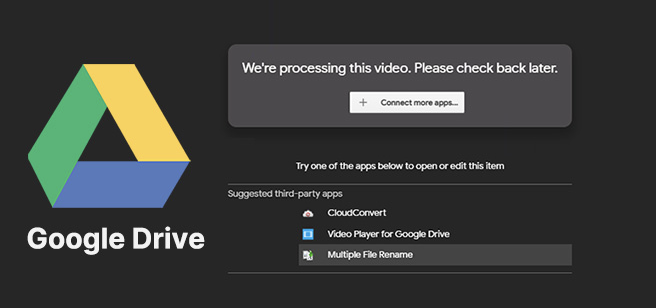
Reason 5: File Still Processing
If a file was recently uploaded, Google Drive may still be processing it.
During processing:
- The download button may not respond
- The file may only partially load
- Certain actions may be temporarily disabled
Large files, especially videos, take longer to fully process before downloads become stable.
Reason 6: Account Switching Issues
Google Drive allows multiple accounts to be logged in at once, but this can sometimes create confusion.
If you are:
- Logged into multiple accounts
- Accessing a file shared with a different account
Then the download button may not work correctly because permissions are tied to a specific account.
The system may fail to match the correct access level.
Reason 7: Corrupted Browser Cache
Browsers store temporary data to improve loading speed, but sometimes this data becomes outdated or corrupted.
When this happens:
- Buttons may stop responding
- Pages may load incorrectly
- Download actions may not trigger
Google Drive relies on real-time scripts, so outdated browser data can interfere with normal behavior.
Why Google Drive Controls Downloads
Google Drive does not treat downloads as simple file transfers. It uses a controlled system that checks:
- File ownership
- Sharing permissions
- Usage limits
- Account authentication
This ensures that files are not downloaded without proper authorization.
Because of this, the download button must pass several checks before working.
Difference Between Button Not Working and Download Failure
These two problems may look similar but are different.
Button Not Working
- Click does nothing
- The issue is with the browser, permissions, or interface
- The download never starts
Download Failure
- Download starts but stops midway
- The issue is with the internet or the storage
- The file may be incomplete
Understanding this difference helps identify the real cause.
Why Some Devices Face More Issues
The download button may fail more often on certain devices due to:
- Older browser versions
- Limited system memory
- Background apps affecting performance
- Weak hardware performance
Google Drive works best in a stable, up-to-date environment.
How Google Drive Handles File Requests
Every download request goes through a verification process.
The system checks:
- User identity
- File access level
- Server availability
- File integrity
If any of these checks fail, the download does not start.
Final Thoughts
When the Google Drive download button is not working, the issue is usually related to permissions, browser behavior, or temporary system conditions rather than the file itself. Google Drive uses a controlled download system that depends on both user access and browser response.