Google Drive and Dropbox are two of the most widely used cloud storage platforms for saving and managing videos. Both allow users to store files online, access them from different devices, and share content easily. However, they operate slightly differently, especially in video storage and playback.
This guide compares both platforms in a clear and practical way so you can understand how they handle video files.
Understanding Google Drive and Dropbox
Both services are cloud storage platforms, but their focus is slightly different.
Google Drive is part of Google’s ecosystem and integrates deeply with Gmail, Google Photos, and other Google services. It is widely used for personal storage, document sharing, and video backups.
Dropbox is a dedicated cloud storage service designed mainly for file synchronization and collaboration. It is known for its strong syncing performance across devices.
Both can store videos, but the experience differs.
Video Upload and Storage
Both platforms allow users to upload video files of different formats and sizes.
Google Drive
- Supports large video files
- Stores videos in original format
- Integrated with Google account storage
Dropbox
- Strong file syncing across devices
- Supports large uploads depending on plan
- Focuses on smooth file synchronization
In terms of raw storage, both are reliable, but Google Drive offers more free storage in its basic plan.
Video Playback Experience
Video playback is an important factor when choosing a storage platform.
Google Drive Playback
- Streams videos directly in browser
- Supports preview without download
- May take time to process large files
Dropbox Playback
- Offers built-in video preview
- Generally faster playback readiness
- Smooth interface for quick viewing
Dropbox tends to feel slightly faster for previewing videos, while Google Drive focuses more on integration and storage.
File Sharing Options
Both platforms offer sharing features, but the structure is slightly different.
Google Drive
- Share via link or email
- Adjustable permissions (view, comment, edit)
- Widely used for public sharing
Dropbox
- Share links easily
- Strong collaboration features
- Good for team-based sharing
Google Drive is more common for public sharing, while Dropbox is often used in professional environments.
Storage Plans and Free Space
Storage limits are important for video users.
Google Drive
- Free storage included with Google account
- Shared across Gmail and Photos
- Paid upgrades available
Dropbox
- Limited free storage
- Paid plans required more quickly
- Focus on premium users
Google Drive generally offers more flexibility for free users.
File Organization System
Both platforms allow file organization, but in different ways.
Google Drive
- Folder-based organization
- Easy search functionality
- Integration with Google Workspace
Dropbox
- Strong sync-based file structure
- Simple and clean interface
- Efficient file sharing across devices
Google Drive is better for structured storage, while Dropbox is more streamlined for syncing.
Video Downloading Behavior
When downloading videos, both platforms behave differently.
Google Drive
- Download depends on browser handling
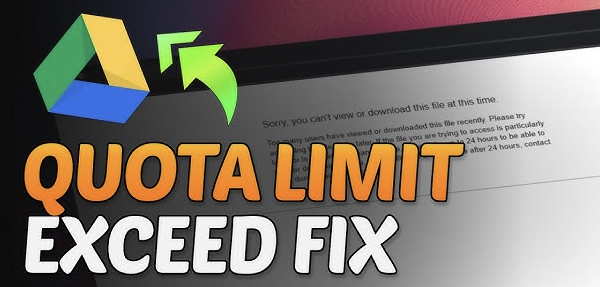
- May show quota or permission issues
- Large files can take time
Dropbox
- Generally smoother download process
- Fewer processing delays
- More direct file access
Dropbox tends to feel more stable for direct downloads.
Performance for Large Video Files
Large videos are common in both platforms.
Google Drive
- Handles large files well
- Processing required for preview
- Occasional delays in playback
Dropbox
- Efficient syncing for large files
- Faster readiness for access
- Less preview delay in many cases
Dropbox is often slightly faster for immediate file access.
Best Use Cases
Each platform works better in different situations.
Google Drive is better for:
- General cloud storage
- Sharing files widely
- Integration with Google tools
- Personal video backups
Dropbox is better for:
- Team collaboration
- Fast file syncing
- Professional workflows
- Quick file access across devices
Final Thoughts
Google Drive and Dropbox are both strong options for video storage, but they are designed for slightly different needs. Google Drive focuses on storage, accessibility, and integration with Google services, while Dropbox emphasizes fast syncing and smooth collaboration.
For general video storage and sharing, Google Drive is often more flexible. For professional workflows and fast synchronization, Dropbox offers a more streamlined experience.
Drive Downloader vs Manual Download Method (Comparison Guide)

Downloading videos from Google Drive can be done in two main ways: using a third-party tool like DriveDownloader or using the manual download option provided by Google Drive itself. Both methods achieve the same result, but the process and experience are different.
This guide explains how both methods work and how they compare.
What Is DriveDownloader
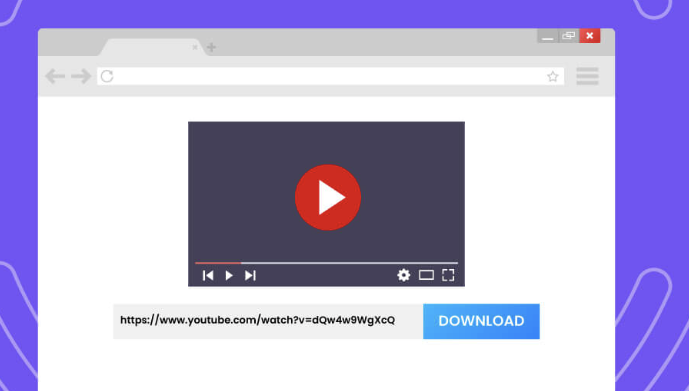
DriveDownloader refers to online tools designed to help users download videos from Google Drive links more easily. These tools typically work by:
- Accepting a Google Drive link
- Processing the file in the background
- Generating a downloadable version
They are often used when direct download options are slow or restricted.
What Is Manual Download Method
The manual method is the standard way of downloading files directly from Google Drive.
It involves:
- Opening the file in Google Drive
- Clicking the download button
- Saving the file to your device
This method does not require any external tools.
Ease of Use
DriveDownloader
- Simple link-based process
- Works through a single interface
- No need to navigate Google Drive directly
Manual Method
- Requires opening Google Drive
- Needs navigation through interface
- More steps for beginners
DriveDownloader is simpler in terms of steps, while manual download is straightforward but slightly longer.
Speed and Performance
DriveDownloader
- Depends on tool performance
- May vary based on server load
- Sometimes slower for large files
Manual Method
- Direct connection to Google Drive
- More stable download process
- Consistent performance
Manual download is generally more reliable.
Security and Reliability
DriveDownloader
- Depends on third-party website
- Varies in safety level
- May include ads or redirects
Manual Method
- Direct from Google Drive
- Fully controlled by Google system
- More secure and trusted
Manual download is safer overall.
File Quality and Output
Both methods usually provide the same file quality because Google Drive does not change file content during download.
- No quality loss in either method
- Same original file is delivered
- Format remains unchanged
Final Thoughts
DriveDownloader offers convenience, while the manual method offers stability and security. Both achieve the same goal, but the manual method remains the most reliable because it works directly through Google Drive without third-party involvement.