Downloading videos from Google Drive in HD quality is usually very straightforward, but many people still get confused about how the process works or why sometimes the quality looks different. In most cases, Google Drive preserves the original quality of the uploaded file, which means if a video was uploaded in HD, it will stay in HD when you download it.
This guide explains the process in detail so you can download videos properly without losing quality or facing common issues.
Understanding Video Quality on Google Drive
Before downloading anything, it is important to understand how Google Drive handles video files.
Google Drive does not compress or reduce the quality of videos during download. The platform simply stores the file as it was uploaded. This means:
- If a video is uploaded in 1080p, it will download in 1080p
- If it is uploaded in 720p, it will remain 720p
- If the original file is low quality, it cannot be improved during download
One common misunderstanding is that Google Drive changes video quality. In reality, any quality difference comes from the original file itself, not the download process.
Step 1: Open the Google Drive Video Link
To begin, open the Google Drive link provided to you. This could be shared by a friend, a team member, or from your own Drive account.
Once the link opens, the video will usually load in a preview window. This preview allows you to watch the video online without downloading it first.
At this stage, do not click random buttons. Wait for the video to fully load so all options become visible.
Step 2: Check Video Preview Before Downloading
It is always a good idea to preview the video before downloading it. This helps you confirm that:
- The video is the correct file
- The audio and visuals are working properly
- The quality is what you expect
If the preview looks blurry or low quality, that usually means the original upload was not in HD, and downloading it will not change that.
Step 3: Locate the Download Option
Once the video is open in preview mode, look at the top right corner of the screen.
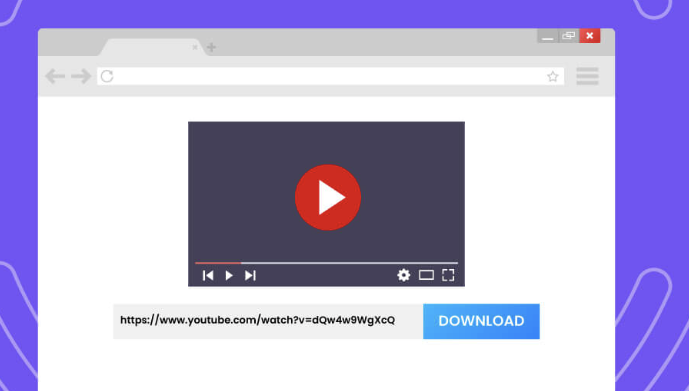
You will usually see a download icon (an arrow pointing downward). This is the main option used to download files from Google Drive.
Clicking this icon will start the download process immediately. Depending on your browser, you may be asked where to save the file, or it may automatically go to your Downloads folder.
Step 4: Start the Download Process
After clicking the download button, your browser will begin downloading the video file.
The speed of the download depends on several factors:
- Your internet connection
- The size of the video file
- Server load on Google Drive
For small videos, the process is usually quick. For larger HD or Full HD videos, it may take longer.
During this time, it is important not to refresh the page or close the browser tab, as this may interrupt the download.
Step 5: Wait for the Download to Complete
Once the download starts, you simply need to wait for it to finish. Most browsers show the progress at the bottom or top of the screen.
If the file is large, it may take several minutes or more. This is normal and not an error.
If your internet connection is stable, the download will complete without issues.
Step 6: Find the Downloaded Video on Your Device
After the download is complete, the video will be saved on your device.
On most devices, you can find it in the default “Downloads” folder. From there, you can:
- Play the video using a media player
- Move it to another folder
- Transfer it to another device
Most modern media players support HD video formats like MP4, so playback should be smooth.
Why Google Drive Keeps the Original Quality
One of the biggest advantages of Google Drive is that it does not modify your files.
Unlike some social media platforms that compress videos to save space, Google Drive keeps everything as it is. This is why it is commonly used for:
- Sharing movie files
- Educational content
- Business presentations
- High-quality video storage
This makes it reliable for users who want original quality without loss.
Common Issues People Face During Download
Even though downloading is simple, some users experience problems. Here are a few common situations:
1. Slow Download Speed
This usually happens due to a weak internet connection or a large file size.
2. Download Not Starting
Sometimes the browser may block downloads temporarily. Refreshing the page often fixes this.
3. File Not Opening After Download
This usually means the device does not have a proper video player installed.
4. Video Looks Low Quality
This is not a download