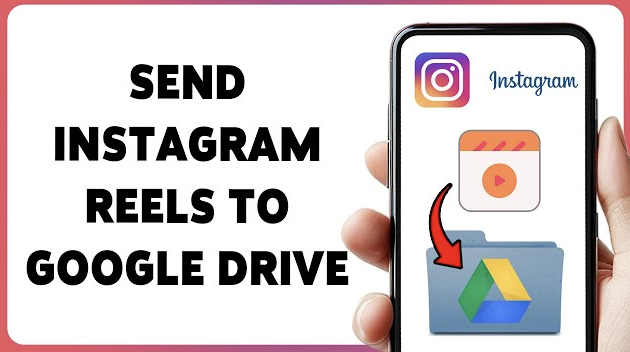
Saving Instagram videos to Google Drive is a common need for users who want to store reels, posts, or stories for later viewing or organization. Since Instagram does not provide a direct option to save videos to cloud storage, the process involves saving the video first and then uploading it to Google Drive.
This guide explains the full process in a simple and structured way.

Understanding Instagram Videos and Google Drive
Instagram is a social media platform focused on sharing short videos, reels, and photos. Google Drive is a cloud storage service used for saving files online.
These two platforms do not have a direct integration, which means:
- Instagram does not send videos directly to Google Drive
- Videos must first be saved to a device
- Then they can be uploaded manually
This makes the process a two-step method.
Step 1: Identify the Video You Want to Save
The first step is selecting the Instagram video you want to store.
This could be:
- A reel
- A post video
- A story (if available for saving)
Once you have identified the video, the next step is to save it from Instagram to your device.
Step 2: Save the Instagram Video to Your Device
Instagram provides limited built-in saving options depending on the content type and account settings.
In many cases, users save videos through available features or device-level saving options.
Once saved:
- The video is stored locally on your phone or computer
- It becomes accessible from your gallery or downloads folder
- It is ready for upload to cloud storage
This step is necessary because Google Drive uploads work from local storage.
Step 3: Open Google Drive
After saving the video, open Google Drive using:
- A mobile app
- A web browser on desktop
Make sure you are signed in to the correct Google account so the file is uploaded to the right storage space.
Step 4: Upload the Video to Google Drive
Once inside Google Drive, you can upload the saved Instagram video.
On mobile:
- Tap the “+” button
- Select “Upload”
- Choose the video from your device
On desktop:
- Click “New”
- Select “File upload”
- Choose the saved video file
The upload process will begin immediately.
Step 5: Wait for Upload to Finish
The upload time depends on:
- Video size
- Internet speed
- Device performance
Short Instagram videos usually upload quickly, while longer reels may take more time.
It is important to keep the app or browser open until the upload is complete.
How Google Drive Stores Instagram Videos
Once uploaded, the video is treated like any other file in Google Drive.
This means:
- It is stored securely in your account
- It can be accessed anytime
- It can be organized into folders
- It can be shared if needed
Google Drive does not change the format or quality of the video during upload.
File Formats of Instagram Videos
Instagram videos are usually saved in standard formats like MP4.
When uploaded to Google Drive:
- The original format remains unchanged
- Quality depends on how the video was originally saved
- Most devices can play the file without issues
MP4 is widely supported, making playback simple.
Why People Save Instagram Videos to Google Drive
Users save Instagram videos for several practical reasons:
- Keeping favorite reels for offline viewing
- Organizing content for inspiration
- Storing business-related media
- Backing up important videos
Google Drive provides a safe and organized space for long-term storage.
Storage Considerations
Google Drive has limited storage space, so users should keep file size in mind.
Important points include:
- Video length affects file size
- Higher quality videos take more space
- Storage is shared across Google services
Managing storage properly helps avoid upload issues.
Accessing Saved Videos Later
After uploading, Instagram videos can be accessed anytime through Google Drive.
To open them:
- Log in to Google Drive
- Locate the uploaded file
- Click to play or download
Files remain available until manually deleted.
Limitations of the Process
There are some limitations when saving Instagram videos to Google Drive:
- No direct one-click transfer from Instagram
- Requires device storage first
- Upload depends on internet speed
- Some content may not be easily saved
Despite this, the method is still widely used.
Final Thoughts
Saving Instagram videos to Google Drive involves downloading or saving the video to your device first and then uploading it to cloud storage. While it is not a direct process, it is simple and effective for keeping videos organized and accessible.
Google Drive then acts as a secure storage space where Instagram videos can be stored, managed, and accessed anytime from any device.